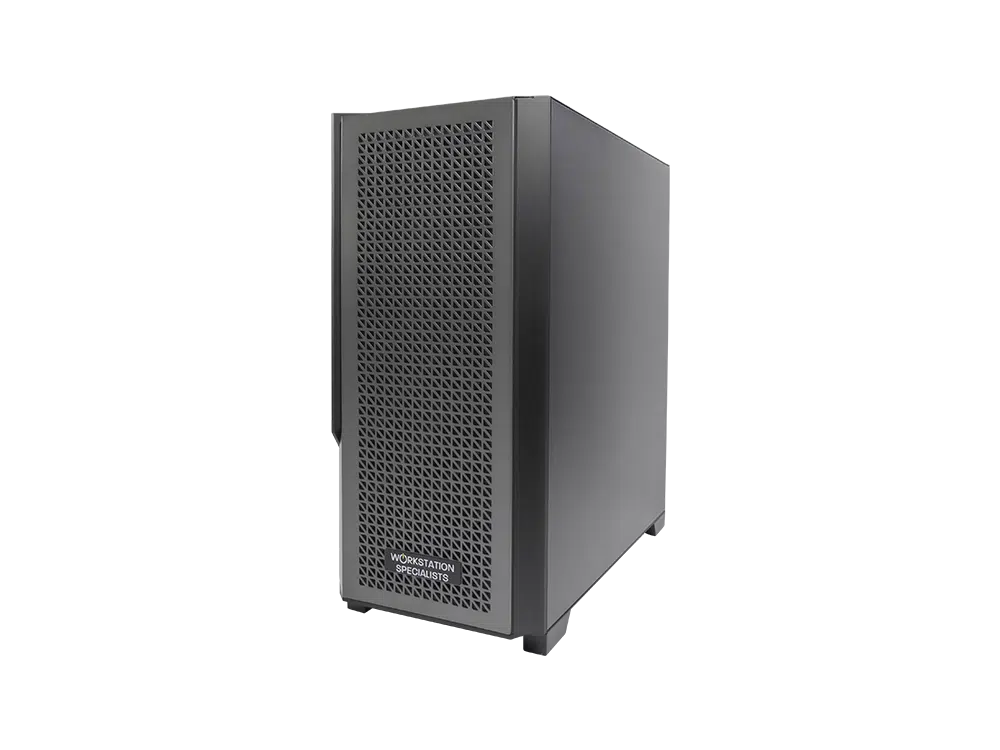
PTC Creo is a powerful 3D CAD tool that requires fast, optimised hardware for smooth performance.
Recommended Workstation for PTC Creo
PTC Creo is one of the most widely used parametric CAD platforms in professional product development, deployed across industries from aerospace and automotive through to industrial machinery and consumer electronics. It is a technically demanding application, and the workstation it runs on has a direct bearing on productivity, model stability, and the overall fluency of the engineering workflow.
Selecting the right hardware requires an understanding of how Creo uses system resources. Unlike rendering or simulation software that can distribute workloads across many cores, the core modelling environment in Creo is predominantly single-threaded. This shifts the emphasis towards processor clock speed rather than core count, though the picture changes significantly if simulation or photorealistic rendering forms part of the workflow.
This guide covers the key hardware considerations for a Creo workstation and offers practical guidance on specification by workload type.
Processor: Clock Speed Is the Priority
For the majority of tasks within PTC Creo — part modelling, assembly management, drawing creation, and general navigation — performance scales closely with single-core clock speed rather than core count. Creo’s modelling kernel is not well-parallelised and adding cores beyond a certain point yields minimal benefit for day-to-day CAD work. A processor running at 5.0 GHz or above will deliver a noticeably more responsive experience than a higher core-count processor operating at a lower base frequency.
For straightforward design and modelling work, processors in the AMD Ryzen 9 or Intel Core Ultra 9 families offer an excellent balance of high clock speeds, modern IPC improvements, and workstation-grade stability. These are a sensible foundation for most professional Creo users.
Where simulation and finite element analysis form a significant part of the workflow, the calculus changes. Simulation tasks in Creo — particularly Creo Simulate and any integrated Ansys workflows — benefit considerably from higher core counts, as the solver can distribute computation across multiple threads. In these circumstances, a platform based on AMD Threadripper PRO or Intel Xeon W provides both the clock speed required for modelling and the core count needed for intensive calculation.
Recommended processors:
Graphics Card: Professional Certification Matters
The GPU in a Creo workstation drives the modelling viewport, handling the real-time display of 3D geometry, shading, and visual feedback as you work. While consumer gaming graphics cards can display 3D content, professional applications like Creo are certified and optimised against professional GPU ranges, specifically NVIDIA RTX professional cards (formerly the Quadro line) and AMD Radeon PRO.
The distinction matters in practice. Professional GPUs feature workstation-grade drivers that have been tuned for stability and accuracy in CAD environments. They support enhanced OpenGL and DirectX Raytracing implementations used by Creo’s display pipeline, and they carry ECC VRAM which reduces the risk of computational errors under sustained load — an important consideration in precision engineering contexts.
For smaller assemblies and day-to-day part modelling, a mid-range professional GPU such as the NVIDIA RTX PRO 2000 or RTX PRO 4000 provides more than sufficient performance. As assembly complexity grows — particularly when working with assemblies containing hundreds or thousands of components — a higher specification card with greater VRAM becomes important for maintaining smooth viewport performance.
Recommended GPUs by project scale:
System Memory: Sizing for Assembly Complexity
RAM directly affects how much geometry, material data, and project information Creo can hold in active memory at any one time. When available memory is exhausted, the operating system falls back to paging data to the storage drive — a process that can cause significant performance degradation, particularly when navigating or modifying large assemblies.
For most professional Creo users working on moderate assemblies, 32 GB of RAM provides a functional baseline, though 64 GB is increasingly the recommended standard for comfortable working with complex multi-component designs. Users who run Creo alongside other engineering tools — such as simulation packages, PDM clients, or product lifecycle management software — will benefit from the additional headroom that 64 GB or more provides.
Very large assemblies, full vehicle or machinery builds with thousands of components, or workflows that combine Creo with Ansys or similar FEA tools, will benefit from 128 GB configurations. DDR5 memory, available on current-generation platforms, provides higher bandwidth than DDR4 and contributes to improved performance when the CPU is working intensively with large data sets.
| Project Scale |
Assembly Size |
Recommended RAM |
| Small projects |
Simple parts and small assemblies |
32 GB |
| Mid-range work |
Assemblies up to ~500 components |
64 GB |
| Complex assemblies |
500+ components, simulation use |
128 GB+ |
Storage: Fast Access for Active Projects
Storage performance influences application launch times, file load speeds, and the responsiveness of Creo when opening and saving large assemblies. An NVMe SSD on the primary drive delivers substantially faster read and write speeds than any SATA-based alternative, and the difference is tangible when working with large project files on a regular basis.
The recommended approach is to install the operating system, Creo application, and all active project files on a high-performance NVMe SSD. This ensures the system is loading data from the fastest available medium throughout the working day. For archiving completed projects and storing reference data, a secondary SATA SSD or a high-capacity HDD is a cost-effective solution — speed is less critical for files that are not in active use.
Studios and larger engineering teams may also benefit from a NAS solution for shared project access and centralised backup, with individual workstations connected via 10 Gigabit Ethernet to minimise any network bottleneck when transferring large assemblies.
Recommended storage configuration:
- Primary drive: NVMe SSD (1 TB minimum, 2 TB recommended) for OS, Creo, and active projects
- Secondary drive: SATA SSD or HDD for completed work and project archives
- Team environments: NAS with 10 GbE connectivity for shared access and RAID protection
Optimising Creo Performance in Practice
Hardware specification sets the ceiling, but there are several practical steps that ensure a Creo workstation performs consistently at the level its components are capable of.
Keeping GPU drivers up to date is important — professional GPU manufacturers release regular driver updates that include certifications and optimisations for the latest versions of Creo and other CAD software. Running a driver version that predates the installed version of Creo can introduce instability in the viewport or cause visual artefacts. It is worth checking PTC’s hardware certification database to confirm driver compatibility when updating either the software or the driver.
Within Creo itself, the graphics configuration in the config.pro file can have a meaningful impact on performance. Setting the graphics mode to OpenGL or DirectX 12 depending on the GPU and Creo version in use and adjusting the level of real-time shading and reflection quality to suit the complexity of the current project, can free up significant GPU headroom when working on large assemblies. Disabling non-essential visual effects — such as ambient occlusion or real-time shadows — when they are not required for the task at hand is a straightforward way to maintain viewport responsiveness.
Monitoring system resource usage via Windows Task Manager or a utility such as HWiNFO provides useful insight into where bottlenecks may be occurring. If CPU utilisation is consistently high while the GPU is largely idle, the primary constraint is processing power. If RAM usage is consistently near capacity, additional memory is the most impactful upgrade. Understanding this distinction allows for targeted investment in the areas that will deliver the most improvement.
Recommended Workstation Specifications at a Glance
The following table summarises recommended configurations across three workload tiers. These reflect typical professional usage patterns and serve as a practical starting point when specifying a Creo workstation.
| Component |
Entry / Mid-Range |
Professional |
High-End |
| CPU |
AMD Ryzen 9 9900X / Intel Core Ultra 9 285K |
AMD Ryzen 9 9950X / Intel Core Ultra 9 285K |
AMD Threadripper PRO 7000 / Intel Xeon W-3500 |
| GPU |
NVIDIA RTX PRO 2000 (16 GB) |
NVIDIA RTX PRO 4000 (24 GB) |
NVIDIA RTX PRO 5000 (48 GB) |
| RAM |
32 GB DDR5 |
64 GB DDR5 |
128 GB DDR5 ECC |
| Primary Storage |
1 TB NVMe SSD |
2 TB NVMe SSD |
2 TB NVMe SSD |
| Secondary Storage |
1 TB SATA SSD / HDD |
2 TB HDD or NAS |
NAS + local archive HDD |
Conclusion
A well-specified Creo workstation makes a genuine difference to the pace and quality of engineering work. The right balance of processor clock speed, professional GPU, RAM, and fast storage ensures that the hardware is not the limiting factor in the workflow — whether working through detailed part modelling, managing complex assemblies, or running simulations alongside the CAD environment.
The specifications outlined here are based on real-world Creo workloads and are intended as a practical guide rather than a checklist. Every professional’s requirements differ, and in some cases a tailored configuration — accounting for the specific version of Creo, the nature of the simulation tools in use, and the complexity of typical assemblies — will yield better results than a standard off-the-shelf build.
For advice on specifying a workstation that fits your Creo workflow, our engineering team is available to discuss your requirements and recommend a configuration that delivers the performance your work demands.